Quick Answer: AI productivity tools can save professionals anywhere from 30 minutes to several hours per day by automating repetitive tasks, speeding up research, improving communication, and handling administrative work. You don’t need technical skills to get started — most of the best tools available today require nothing more than knowing what to ask.
Why AI Productivity Tools Are Changing How We Work
The average knowledge worker spends a significant portion of their day on tasks that don’t require deep expertise — drafting routine emails, summarising documents, scheduling meetings, searching for information, formatting reports. These tasks aren’t difficult, but they are time-consuming, and they crowd out the higher-value work that actually moves the needle.
AI productivity tools are changing that equation. Whether you’re a business owner, a manager, a marketer, an analyst, or an executive assistant, there are practical, accessible ways to use AI at work starting today — no technical background required.
This article covers ten of the most impactful, with specific tools, real examples, and honest guidance on where AI genuinely helps and where it still needs a human hand.
1. Write and Edit Faster with AI Writing Assistants
Writing is one of the biggest time sinks in a modern workday — emails, reports, proposals, updates, presentations. AI writing tools dramatically reduce the time it takes to go from blank page to polished draft.
How it works in practice: Rather than staring at a blank screen, you give an AI tool a brief — the purpose, key points, tone, and audience — and it produces a working draft in seconds. You then review, edit, and personalise. You’re no longer writing from scratch; you’re editing, which is significantly faster.
Best tools:
- Claude (Anthropic) — Excellent for long-form writing, nuanced tone, and thoughtful editing
- ChatGPT (OpenAI) — Strong all-rounder for drafting, summarising, and rewriting
- Grammarly — AI-powered grammar, clarity, and tone suggestions inline
- Notion AI — Built into Notion for document drafting and summarisation
Time saved: Research from McKinsey suggests AI writing assistance can reduce drafting time by 40–50% for knowledge workers.
Important note: Always review AI-generated content before sending or publishing. AI tools can produce plausible but inaccurate details — especially for anything involving specific data, dates, or claims.

2. Summarise Long Documents and Reports Instantly
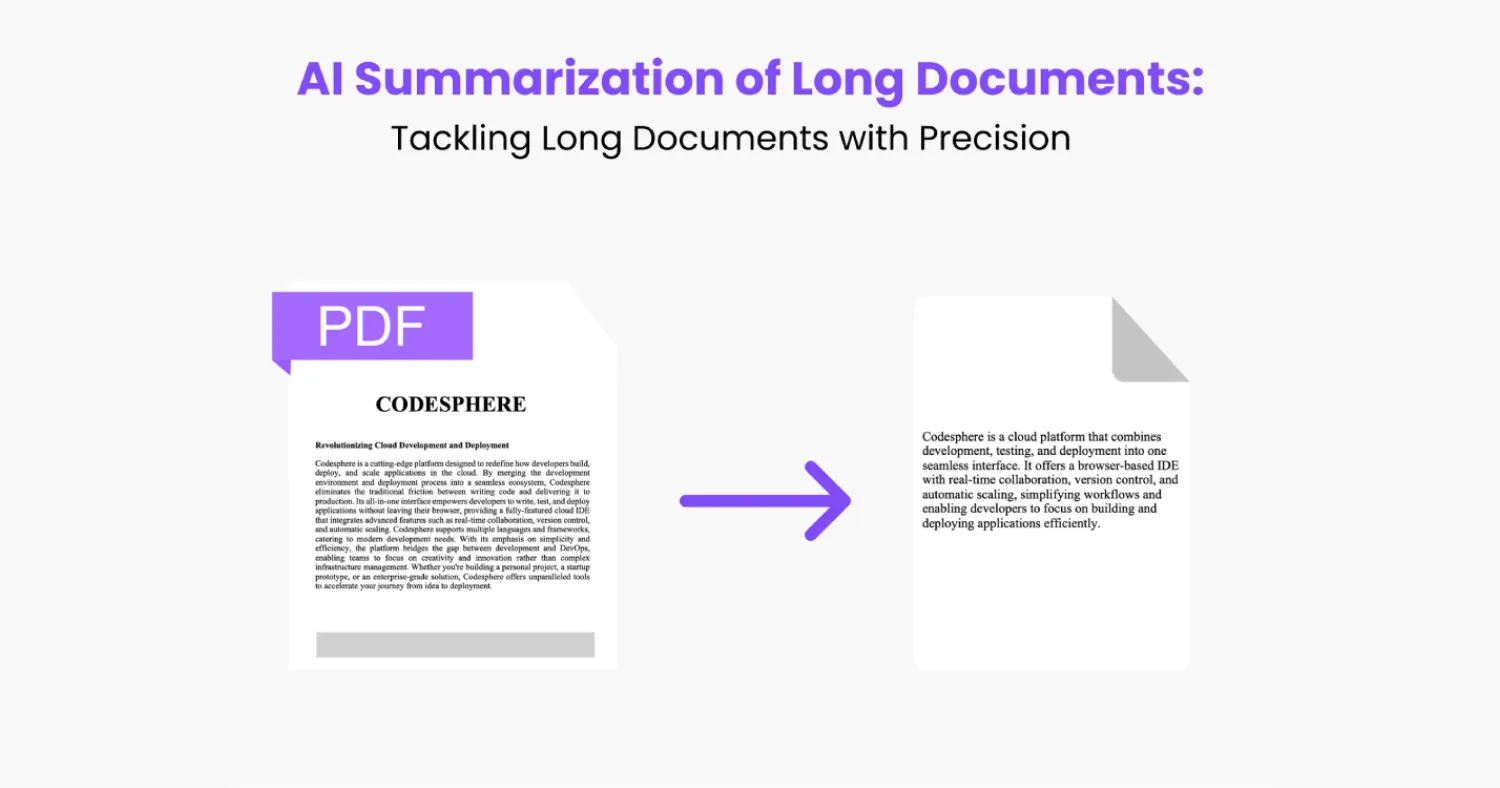
Reading through a 40-page report, a lengthy contract, or a long email thread to extract the key points is one of the most draining parts of office work. AI productivity tools can summarise dense documents in seconds.
How it works in practice: Paste the document — or upload the PDF — into a capable AI tool and ask for a summary structured around what you need: key findings, action items, risks, or open questions. You can ask follow-up questions about the document as if it were a conversation.
Best tools:
- Claude — Handles very long documents with strong contextual accuracy
- ChatGPT — Effective for summarisation with follow-up Q&A
- NotebookLM (Google) — Purpose-built for document research and summarisation
- Copilot in Microsoft 365 — Summarises Word docs, email threads, and Teams conversations natively
Real example: A project manager uploads meeting notes from the past three weeks and asks the AI to surface all open action items by owner. What would take 30 minutes of re-reading takes under two minutes.
3. Automate Email Drafting and Responses
Email is the single largest time sink for most professionals. Studies consistently show that workers spend an average of two to three hours per day on email. AI productivity tools can dramatically compress that time.
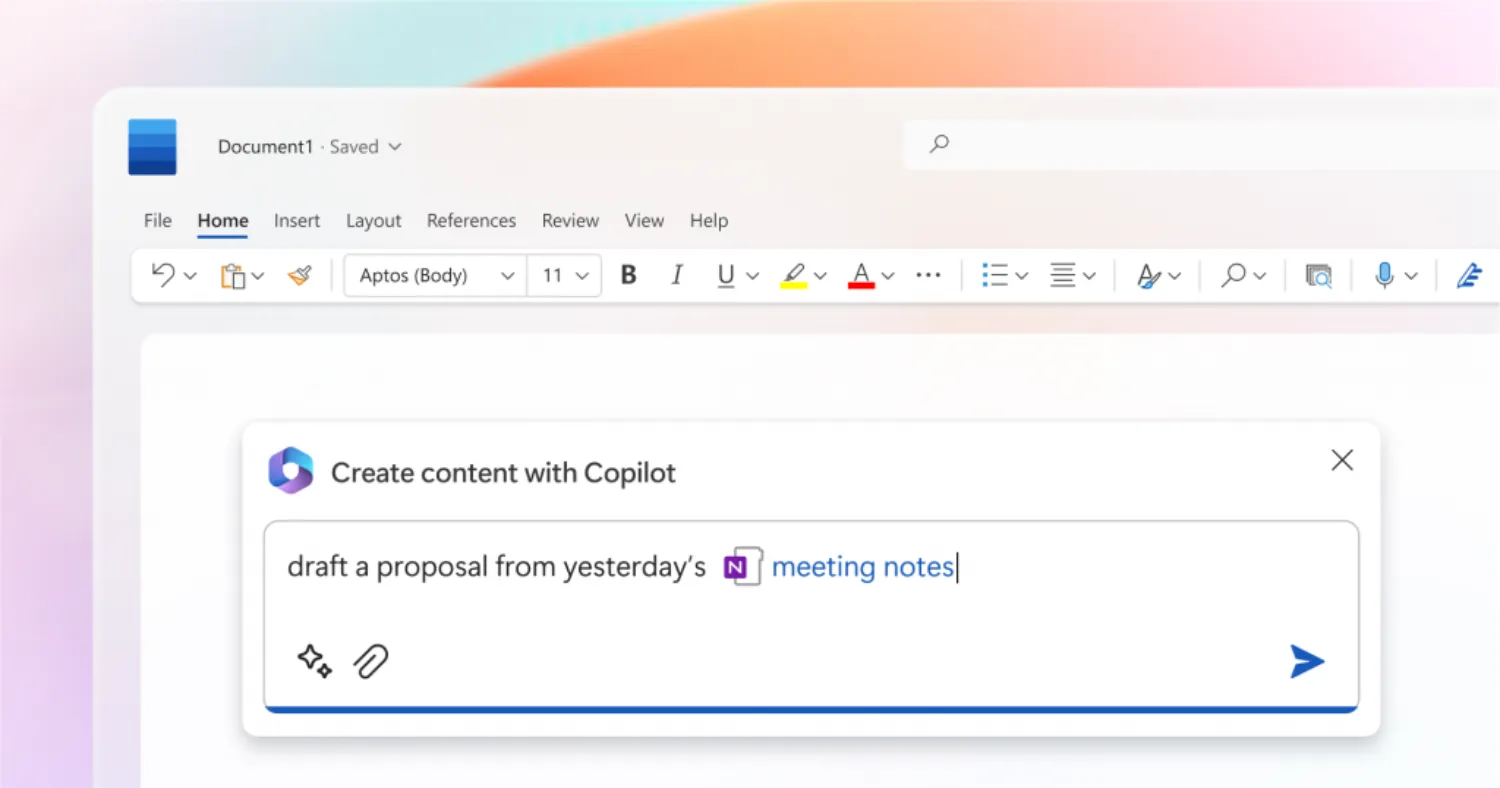
How it works in practice: Tools like Copilot in Outlook and Gemini in Gmail can read incoming emails and draft contextually appropriate replies. You review, adjust, and send. For routine correspondence — acknowledgements, follow-ups, status updates — this can reduce response time from minutes to seconds.
Best tools:
- Microsoft Copilot in Outlook — Draft replies, summarise threads, flag priorities
- Gemini in Gmail — Similar capabilities within Google Workspace
- Superhuman — AI-assisted email with priority sorting and smart replies
- Claude or ChatGPT — Paste any email and ask for a draft reply with a specified tone
Time saved: Users of AI email tools report saving 45–90 minutes per day on correspondence alone.
4. Prepare for Meetings More Effectively
Most meetings are preceded by little preparation and followed by vague recollections. AI changes both ends of that equation.
Before the meeting: Feed relevant documents, past meeting notes, and context to an AI tool and ask it to prepare a briefing — key background, talking points, questions to raise, and potential objections to anticipate.
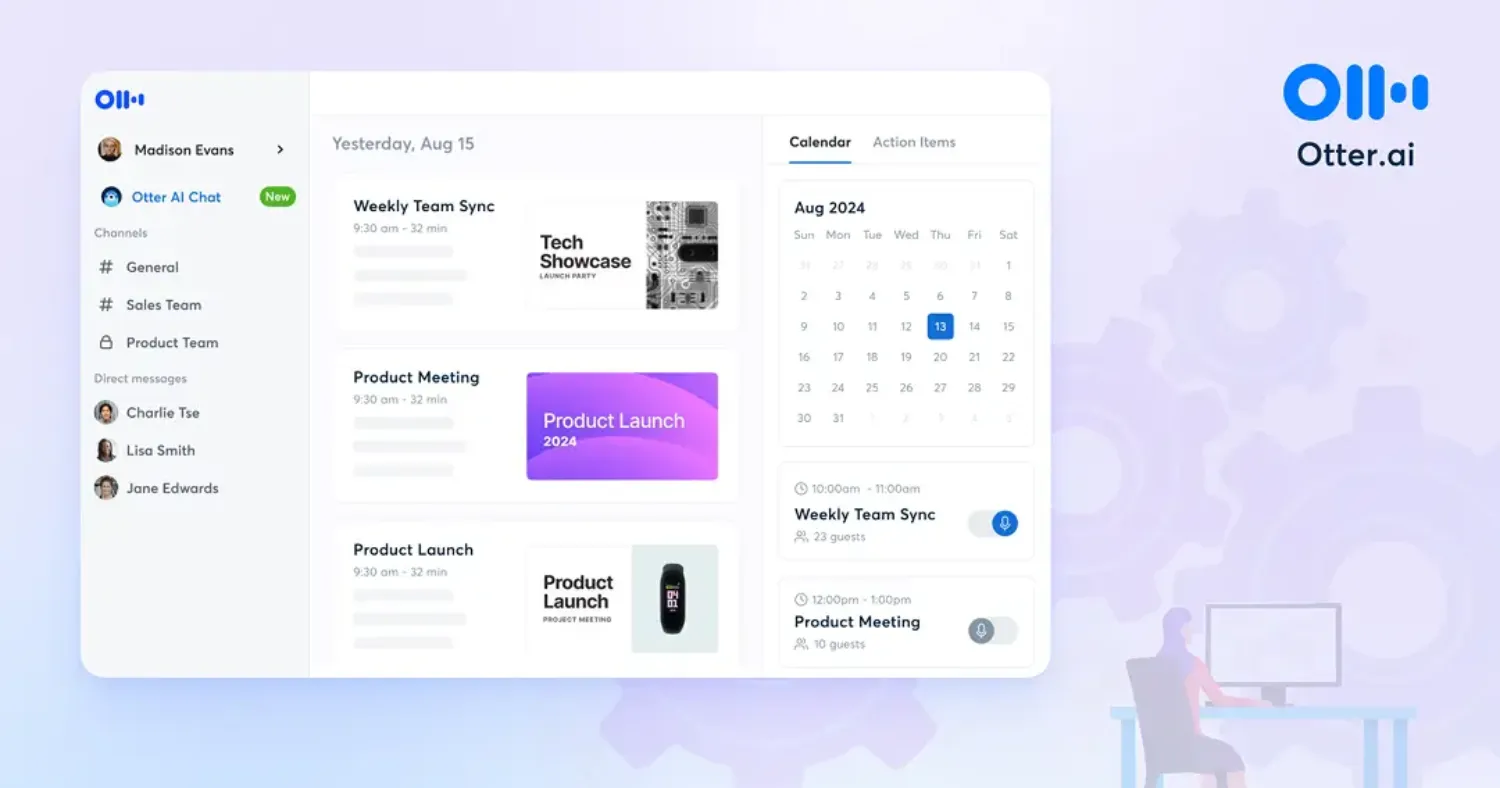
After the meeting: Tools that transcribe and analyse meetings can produce summaries, action item lists, and follow-up drafts in minutes.
Best tools:
- Otter.ai — Real-time meeting transcription and summary
- Fireflies.ai — Records, transcribes, and summarises meetings across Zoom, Teams, and Meet
- Notion AI / Copilot — Meeting note summarisation and action item extraction
- Claude or ChatGPT — Paste a meeting transcript and ask for a structured summary with owners and deadlines
Real example: A sales team uses Fireflies to automatically generate a call summary and send it to the CRM after every client conversation — eliminating manual note entry entirely.
5. Conduct Research in a Fraction of the Time
Whether you’re researching a new market, a competitor, a regulatory change, or an industry trend, manual research is slow. AI productivity tools can compress hours of searching into minutes of structured insight.
How it works in practice: Rather than conducting multiple searches, reading through dozens of tabs, and manually synthesising findings, you ask an AI tool — particularly one with web access — to research a topic and return a structured summary with sources. You then verify and build on what it finds.
Best tools:
- Perplexity AI — Purpose-built AI research engine with cited sources
- Claude with web search — Research with follow-up questions and long-form synthesis
- ChatGPT with web browsing — Real-time research with references
- Gemini with Google Search — Deep integration with live search results
Important note: AI research tools are excellent starting points but should not replace primary source verification for anything consequential. Always cross-check data, statistics, and claims before using them in reports or presentations.
6. Analyse Data Without Being a Data Analyst
For many professionals, working with data means exporting spreadsheets, writing formulas, building pivot tables, and spending hours on tasks that feel more like archaeology than analysis. AI is making data more accessible to non-technical users.
How it works in practice: Upload a spreadsheet or dataset to a capable AI tool and ask plain-language questions: “What are the top five products by revenue this quarter?” “Where is customer churn highest?” “Show me month-over-month trends for leads.” The AI interprets the data and returns answers — often with charts.
Best tools:
- ChatGPT with Code Interpreter (Advanced Data Analysis) — Upload CSV/Excel files and ask analytical questions
- Claude — Strong data interpretation and explanation in natural language
- Microsoft Copilot in Excel — Generates formulas, creates charts, and answers data questions natively
- Julius AI — Purpose-built for data analysis in plain language
Real example: A marketing manager uploads a CSV of campaign performance data and asks which channels produced the lowest cost per lead in Q1. Instead of building pivot tables, they get a clear answer in 30 seconds.
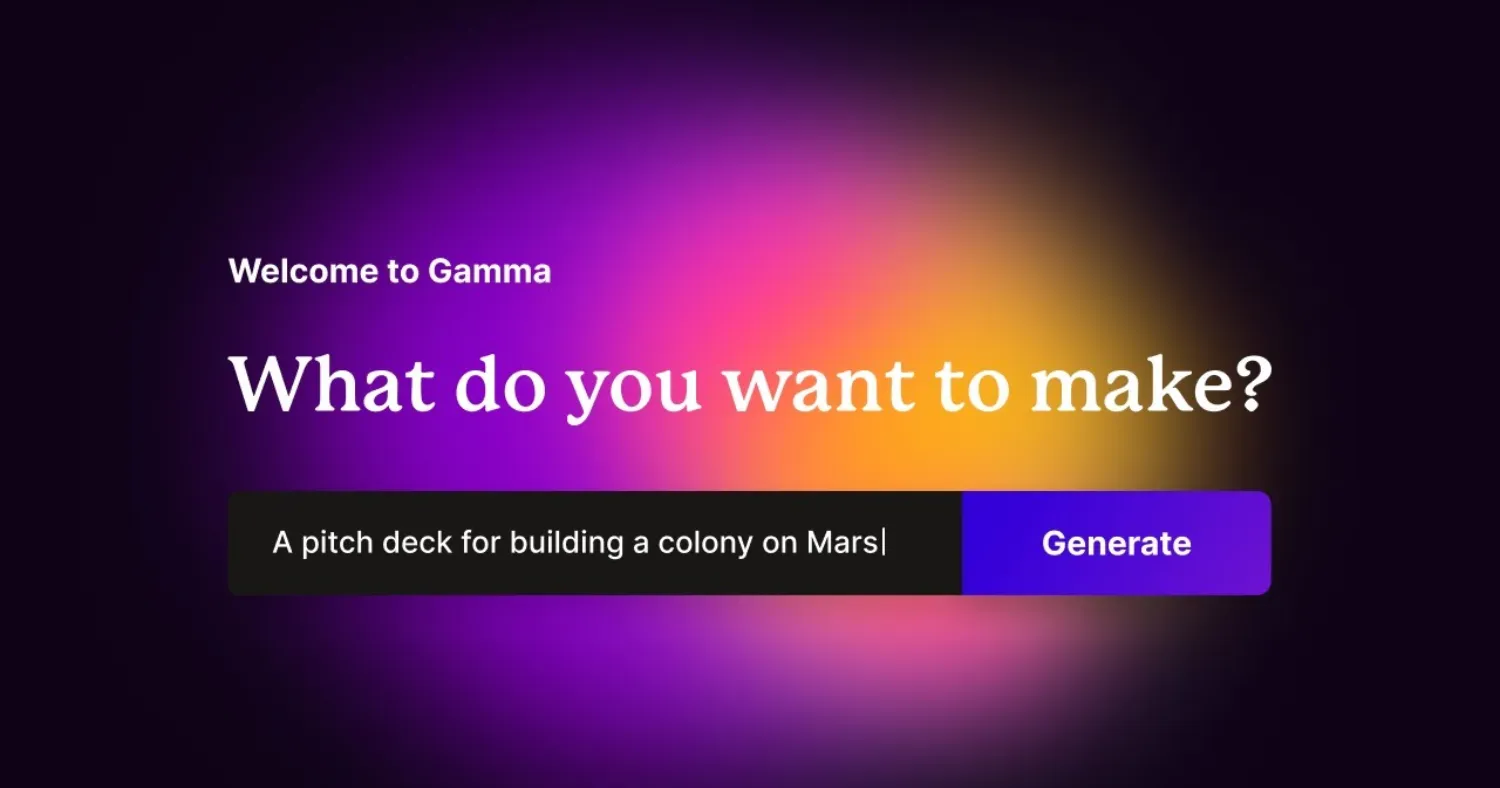
7. Generate First Drafts of Presentations
Building a presentation from scratch is one of the most time-consuming creative tasks in a professional setting — particularly the early structural work of deciding what to include, in what order, and how to frame it. AI productivity tools can handle that scaffolding.
How it works in practice: You describe the presentation’s purpose, audience, and key messages. The AI generates a slide-by-slide outline — or in some cases, a full draft with suggested content per slide. You refine, add your data, and apply your brand template.
Best tools:
- Gamma — AI-native presentation builder that generates full decks from a prompt
- Beautiful.ai — Smart slide design with AI layout suggestions
- Microsoft Copilot in PowerPoint — Generates presentations from Word documents or prompts
- ChatGPT or Claude — Generate detailed slide outlines you build into your own template
Time saved: Professionals report cutting presentation prep time by 50–70% when using AI for initial structure and content drafts.
8. Manage Tasks and Priorities More Intelligently
Staying on top of competing priorities, deadlines, and to-do lists is a cognitive load that quietly drains productivity throughout the day. AI productivity tools are increasingly embedded in task management platforms to help you work smarter.
How it works in practice: AI-enhanced task tools can prioritise your list based on deadlines and dependencies, suggest what to focus on next, flag overdue items, and even draft task descriptions or project plans from a brief.
Best tools:
- Motion — AI-powered calendar and task scheduler that auto-prioritises your day
- Reclaim.ai — Intelligently schedules tasks, meetings, and focus time in your calendar
- Asana with AI — Task prioritisation, project summarisation, and status updates
- Notion AI — Task management, planning, and project documentation in one workspace
- Todoist with AI — Smart task categorisation and priority suggestions
Real example: A freelance consultant uses Motion to automatically schedule client work, admin tasks, and focus blocks around their meetings — eliminating the daily mental overhead of deciding what to work on next.
9. Learn New Skills and Get Up to Speed Faster
Whether you’ve just been handed a new responsibility, joined a new industry, or need to understand a technical concept outside your expertise, AI is an extraordinarily efficient learning companion.
How it works in practice: Instead of searching for tutorials, reading through textbooks, or waiting for training, you can ask an AI tool to explain any concept at your level — and keep asking follow-up questions until you genuinely understand it. You can also ask it to create a personalised learning plan, quiz you on what you’ve learned, or explain how something applies to your specific situation.
Best tools:
- Claude or ChatGPT — Explain anything at any level; ideal for on-demand learning
- Khanmigo (Khan Academy) — AI tutor for structured learning across subjects
- Coursera and LinkedIn Learning with AI features — Personalised course recommendations and AI-assisted learning paths
Real example: A human resources manager tasked with evaluating software contracts uses Claude to explain key legal and technical clauses in plain language — gaining enough understanding to ask the right questions in vendor meetings, without hiring a consultant.
10. Automate Repetitive Workflows End-to-End
The previous nine uses are valuable individually. This one multiplies all of them. AI workflow automation tools can connect your apps, trigger actions based on conditions, and execute multi-step processes without any manual input — running in the background while you focus on higher-value work.
How it works in practice: You define a trigger (e.g., a new lead fills out a form) and a sequence of actions (enrich the data, add to CRM, send a welcome email, notify the sales rep, schedule a follow-up task). AI-powered automation handles the logic — including cases that weren’t explicitly pre-programmed.
Best tools:
- Zapier AI — Connects thousands of apps with AI-powered workflow automation
- Make (formerly Integromat) — Visual automation builder for complex workflows
- n8n — Open-source automation platform with AI agent capabilities
- Microsoft Power Automate — Deep integration across Microsoft 365 and enterprise tools
- Claude or ChatGPT via API — Embedded AI decision-making within custom workflows
Time saved: Businesses using workflow automation report reclaiming 10–20 hours per week across teams — time previously spent on data entry, routing, notifications, and manual follow-up.
A Summary: 10 AI Productivity Tools by Use Case
| # | Use Case | Top Tool(s) |
|---|---|---|
| 1 | Writing and editing | Claude, ChatGPT, Grammarly |
| 2 | Document summarisation | Claude, NotebookLM, Copilot |
| 3 | Email management | Copilot in Outlook, Gemini in Gmail |
| 4 | Meeting preparation and notes | Fireflies.ai, Otter.ai |
| 5 | Research | Perplexity AI, Claude, ChatGPT |
| 6 | Data analysis | ChatGPT Code Interpreter, Copilot in Excel |
| 7 | Presentations | Gamma, Copilot in PowerPoint |
| 8 | Task and priority management | Motion, Reclaim.ai, Notion AI |
| 9 | Learning and skill-building | Claude, ChatGPT, Khanmigo |
| 10 | Workflow automation | Zapier AI, Make, n8n |
Getting Started: 3 Principles to Keep in Mind
Start with one tool, one task. Don’t try to overhaul your entire workflow at once. Pick the use case where you feel the most time pressure — whether that’s email, meeting prep, or research — and start there. Mastering one tool properly is more valuable than half-using five.
AI is a collaborator, not a replacement. The professionals getting the most from AI productivity tools aren’t the ones delegating everything to the machine — they’re the ones combining their own judgement and expertise with AI’s speed and scale. Review everything important before it goes out.
Accuracy requires verification. AI tools can be confidently wrong. For anything consequential — data, statistics, legal or financial details, factual claims — always verify against a primary source. Use AI to accelerate your work, not to replace your critical thinking.
FAQs: AI Productivity Tools at Work
-
What are the best AI productivity tools for beginners?
ChatGPT and Claude are the most accessible starting points. Both require no setup, work through a simple chat interface, and can help with writing, research, summarising, and planning immediately.
-
Do I need technical skills to use AI productivity tools?
No. The majority of AI productivity tools today work through plain language — you type what you need, and the tool responds. No coding or technical knowledge is required.
-
How much time can AI productivity tools actually save?
Studies vary, but most research suggests 1–3 hours per day for knowledge workers who actively integrate AI tools into their workflows. The actual saving depends heavily on your role and how consistently you use the tools.
-
Are AI productivity tools safe to use with sensitive work data?
It depends on the tool and your organization’s policies. Many enterprise tools (Copilot, Gemini Workspace) offer data privacy commitments. Avoid inputting confidential client data into public AI tools unless you’ve confirmed the terms of service allow it.
-
Will using AI tools make me less skilled over time?
Only if you stop engaging critically with the work. Used well, AI handles the mechanical parts of tasks — freeing you to focus on strategy, judgement, and creativity. The risk of skill atrophy is real if you outsource thinking entirely, not just execution.
-
Which AI tool is best for writing emails?
Microsoft Copilot in Outlook and Gemini in Gmail are the most integrated options. For users outside those ecosystems, Claude and ChatGPT produce high-quality email drafts from a simple brief.
-
Can AI tools attend and summarize meetings for me?
Yes. Tools like Fireflies.ai and Otter.ai can join your video calls, transcribe the conversation in real time, and produce a summary with action items — automatically.
-
What’s the best AI tool for research?
Perplexity AI is purpose-built for research with cited sources. Claude and ChatGPT with web browsing are strong alternatives. Always verify key facts before using AI-generated research in professional work.
-
Are there free AI productivity tools worth using?
Yes. Claude, ChatGPT, Perplexity AI, and Notion AI all offer capable free tiers. Most paid plans range from $20–$30 CAD/month and are typically worthwhile for daily professional use.
-
How do I convince my team or employer to adopt AI tools?
Start with a specific, measurable use case — email drafting time, meeting summarization, or research. Demonstrate the time saving with before-and-after examples. Quantified results are the most persuasive argument.
-
Is it ethical to use AI to write work emails and reports?
Generally yes — in the same way it’s acceptable to use spell-check, templates, or editing tools. Transparency norms vary by context. Using AI to assist your work is different from misrepresenting AI output as entirely your own thinking in contexts where that distinction matters.
-
What’s the difference between using ChatGPT and using Copilot at work?
ChatGPT is a standalone tool; Microsoft Copilot is embedded directly into Microsoft 365 apps — Word, Outlook, Teams, Excel — and has access to your actual documents and emails. Copilot is more integrated; ChatGPT is more flexible.
-
Can AI help with creative work, not just admin tasks?
Absolutely. AI productivity tools are widely used for brainstorming, concept development, copywriting, campaign ideation, and visual content creation. Creative professionals report using AI primarily for overcoming blank-page paralysis and rapid iteration.
-
How often should I update which AI tools I’m using?
The AI tools landscape is evolving rapidly. A light quarterly review — checking whether better options have emerged for your key use cases — is a reasonable habit. Avoid tool-hopping for its own sake; consistency builds proficiency.
-
Where should I start if I’ve never used an AI productivity tool before?
Open Claude or ChatGPT and ask it to help with the next task on your to-do list — whether that’s drafting an email, summarizing a document, or planning a project. You’ll understand more from five minutes of hands-on use than from any guide.
Final Thoughts
The professionals and businesses pulling ahead right now aren’t necessarily the most technically sophisticated — they’re the ones who’ve figured out how to integrate AI productivity tools into their daily workflows in practical, consistent ways.
You don’t need to transform everything at once. Pick one use case, try one tool, and build from there. The goal isn’t to use AI for everything — it’s to reclaim your time for the work that genuinely requires you.
Start today. The tools are ready.